Complete the device definition
After creating a Device definition, complete its user-facing structure by defining Operation Groups, Operations, and Commands.
Operation Groups
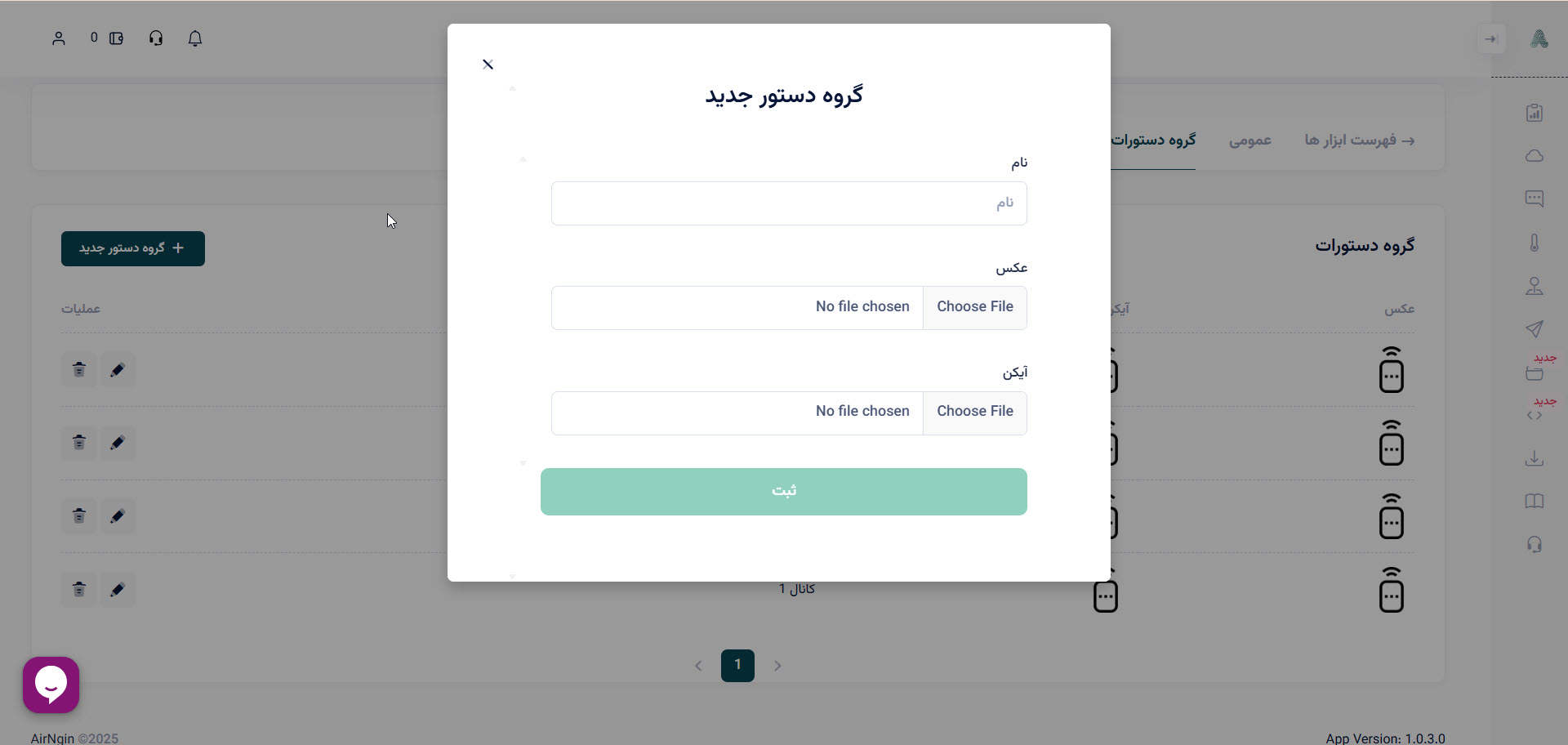
Operation Groups organize related capabilities in the mobile application. Each group can have its own name, icon, image, and display order.
A Device may contain multiple groups. In the AirNgin mobile application, every group is shown as a separate section, which makes complex products easier to navigate.
Create an Operation Group
Provide the base group information:
- Group name — displayed as the section title in the application.
- Image and icon — used for visual presentation and recognition.
Operations
An Operation is one controllable or observable capability of a Device. Examples include a relay channel, a dimmer, temperature, humidity, fan speed, or a network setting.
What is operationName?
operationName is the machine-readable identity of the Operation. It is the shared identifier used by the Backend, mobile application, Analyzer/Direct Device logic, and firmware.
Keep it stable and use only supported English letters/numbers according to the panel validation rules. Reserved names include platform functions such as:
runscenario
runsecurity
sendsms
receivesms
debugger
Step 1 — define the Operation
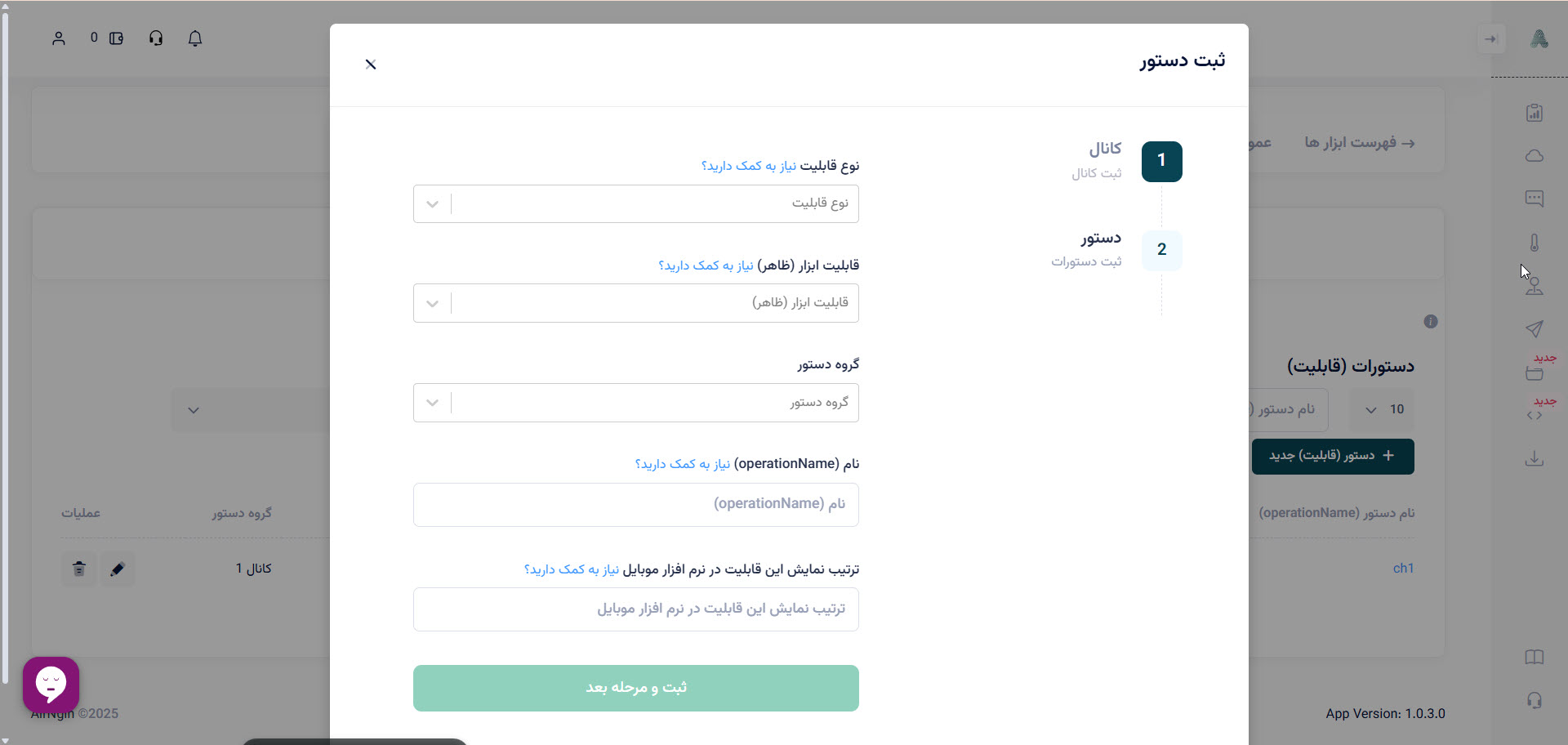
Choose the capability type and presentation metadata.
Capability type
- Actuator: performs an action, such as a relay, switch, motor, dimmer, valve, or other controlled output.
- Sensor: reports a measured or observed value, such as temperature, humidity, light level, voltage, current, motion, or door state.
Actuators may be discrete (on/off, enable/disable) or numeric (for example, dimmer percentage or motor speed).
UI representation
Choose how the Operation should be rendered in the application, such as a button, switch, numeric input, slider, or sensor value.
Operation Group
Assign the Operation to one of the previously created groups. This determines where it appears in the mobile application.
Display order
Use the display index to control the order of Operations inside a group. Lower values appear earlier.
Step 2 — define Commands
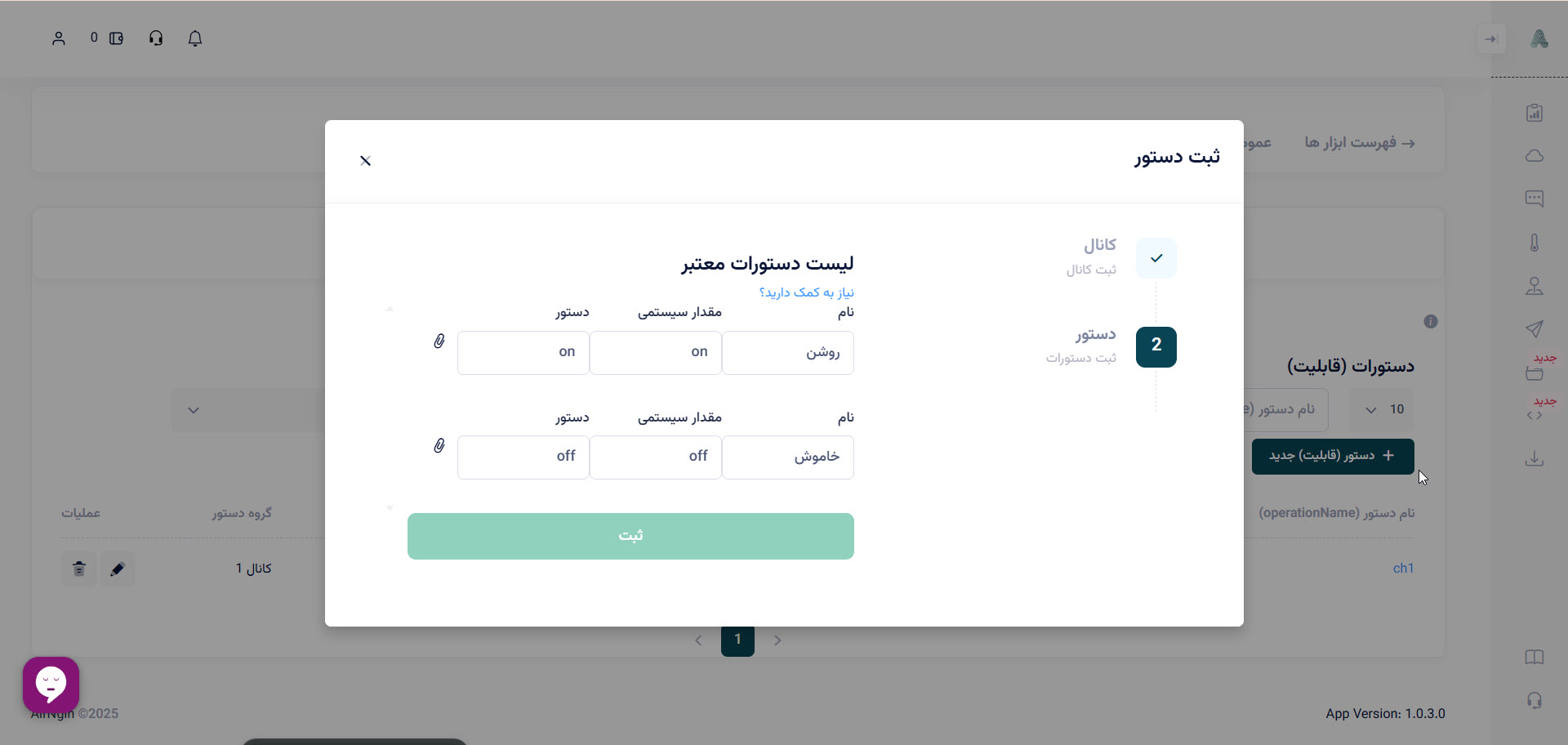
Commands are the valid values that can be sent to or reported by an Operation.
Examples:
Relay1:on,offFanSpeed:low,medium,highDimmer: numeric values such as0to100
Each Command can have a user-facing name/icon while keeping a stable machine value for the Device integration. The firmware or Analyzer must use the same canonical command values that were defined in the panel.